Examples
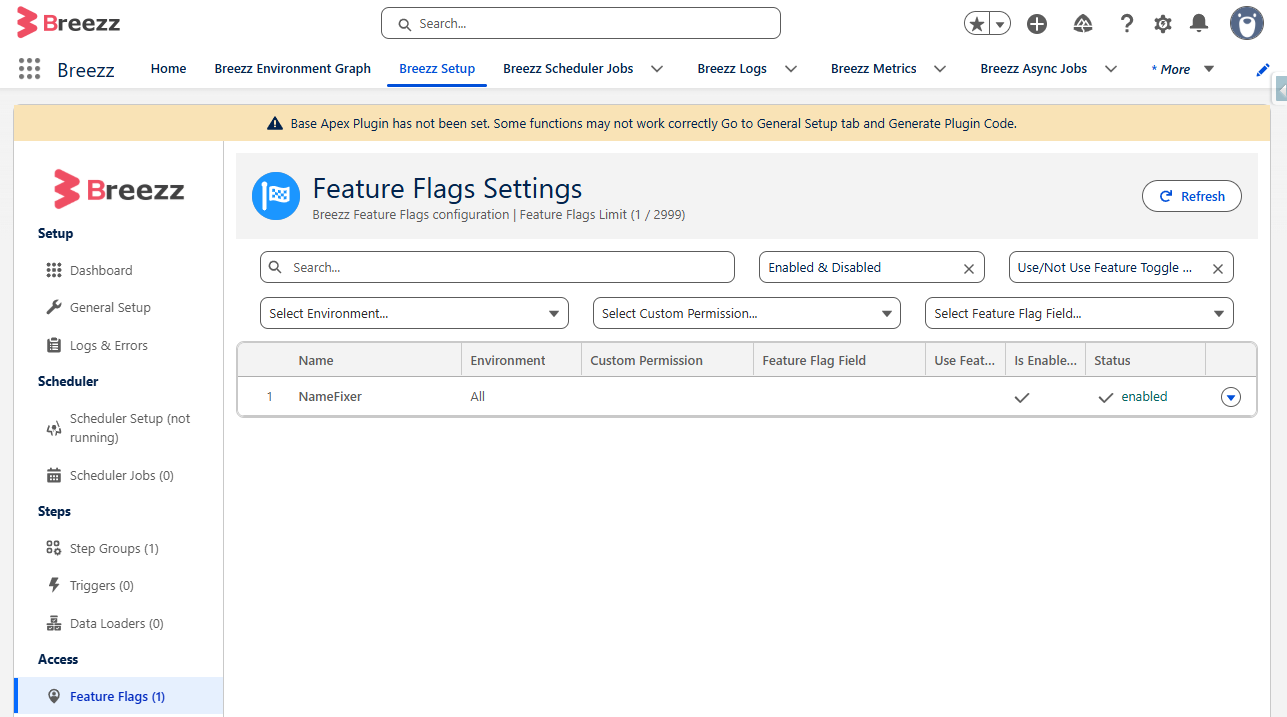
Below is a complete step-by-step tutorial demonstrating how to create, configure, and evaluate a simple Feature Flag in a real-world scenario.
Step 1: Configure a New Feature Flag
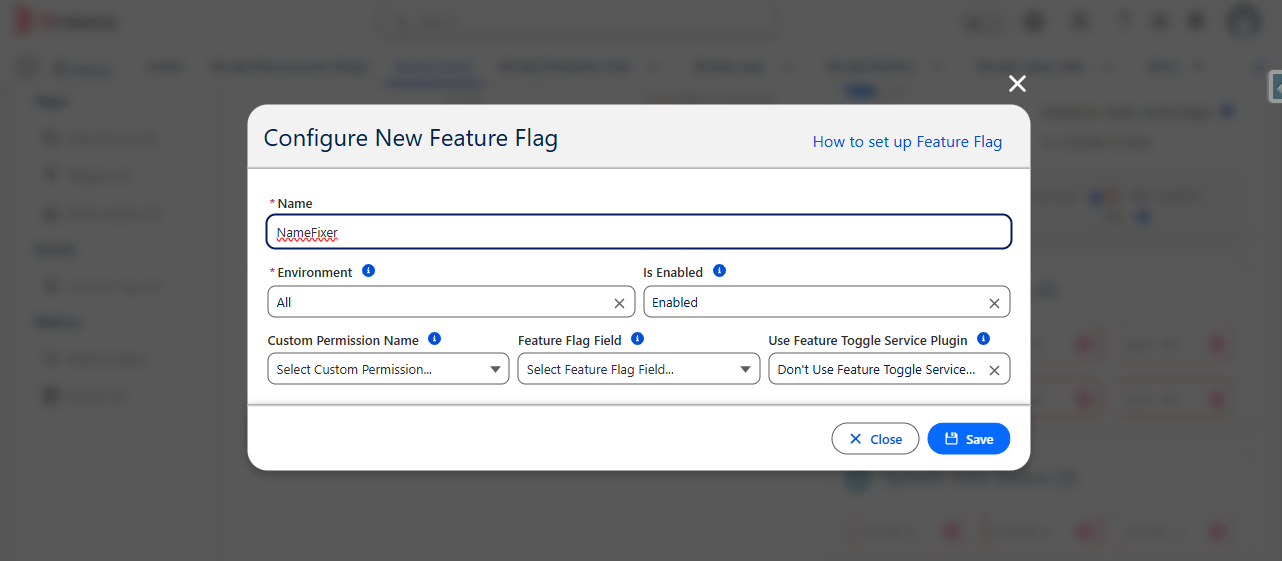
Navigate to Breezz Setup → Feature Flags → New and fill in the details as shown below:
Advanced Configuration Options
- Custom Permission Name: Restrict feature availability to users with a specific Custom Permission assigned via Profile or Permission Set.
- Feature Flag Field: Link the feature toggle to a checkbox field on the
Breezz Feature FlagCustom Setting to enable or disable features per Profile or User hierarchy. - Use Feature Toggle Service Plugins: Delegate feature evaluation to dynamic Apex logic implementing
forvendi.BreezzPlugins.FeatureToggleService.
Step 2: Create the Step Class
Create an Apex Step class extending forvendi.Step to perform the business logic (e.g., appending a string suffix to SObject record names):
public with sharing class NameFixerStep extends forvendi.Step {

    // Default public constructor passing the class name for log tracking and async offloading
    public NameFixerStep() {
        super(NameFixerStep.class.getName());
    }

    public override Boolean initRecordProcessing(Object record, Object optionalOldRecord) {
        SObject sfRecord = (SObject) record;
        String recordName = (String) sfRecord.get('Name');

        // Queue field modification via ModificationContext
        getContext().addModificationToUpdate(
            sfRecord.Id,
            Account.Name,
            (String.isBlank(recordName) || recordName.contains('FIXED')) ? recordName : recordName + 'FIXED'
        );

        // Return false as processing finishes within this pass
        return false;
    }
}
Step 3: Write a Unit Test for the Step Class
Create a test method verifying the Step execution and context handling:
@IsTest
private class NameFixerStepTest {

    @TestSetup
    static void testSetup() {
        // Initialize Breezz test context
        forvendi.BreezzApi.TESTS.init('BreezzPlugin');
    }

    @IsTest
    static void should_createRecordWithFixedAddedToName() {
        Account acc = new Account(Name = 'Ms_Smith');
        List<Account> accs = new List<Account>{ acc };

        Test.startTest();
        insert accs;
        forvendi.BreezzApi.STEPS.build()
            .addStep(new NameFixerStep())
            .execute(accs);
        Test.stopTest();

        forvendi.BreezzApi.TESTS.assertErrorLogs();
        acc = (Account) forvendi.BreezzApi.TESTS.loadRecordById(acc.Id);

        Assert.isNotNull(acc);
        Assert.areEqual('Ms_SmithFIXED', acc.Name);
    }
}
Step 4: Register the Step and Link the Feature Flag
Attach the Step class to an Apex Trigger cycle (e.g., After Insert on Account):
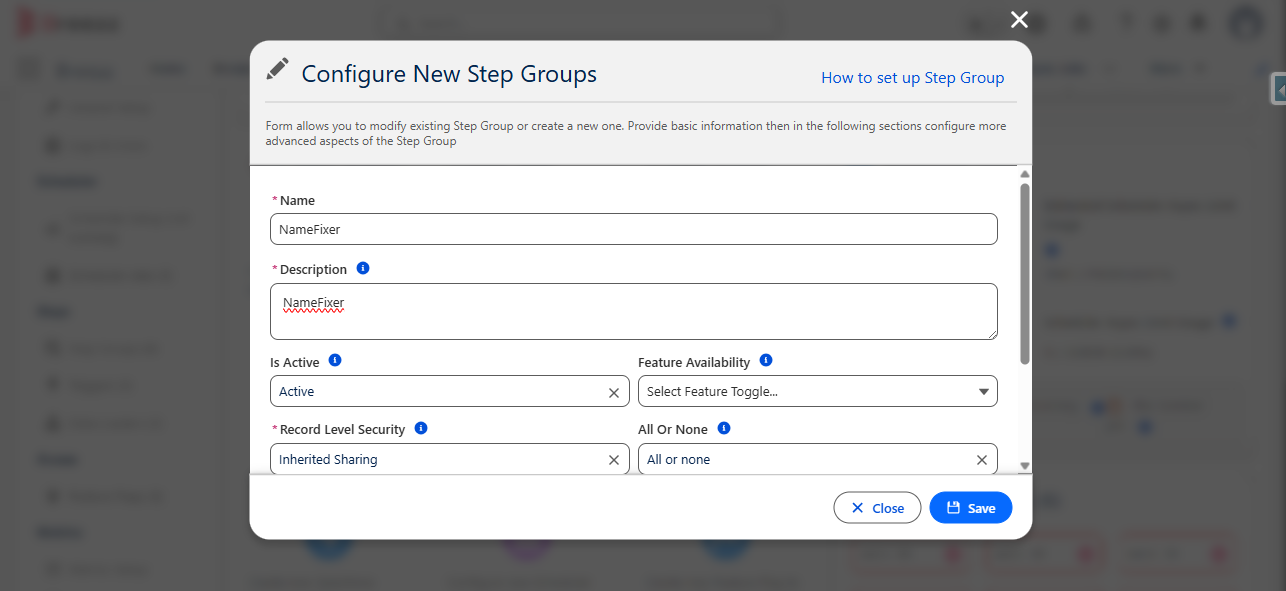
- Go to Breezz Setup → Step Groups → Select Target Group.
- Click New Step.
- Select your created
NameFixerStep. - In the Feature Availability lookup/field, attach the
NameFixerFeature Flag created in Step 1.
Step 5: Test and Verify Feature Availability
-
Open Salesforce App Launcher and navigate to Accounts.
-
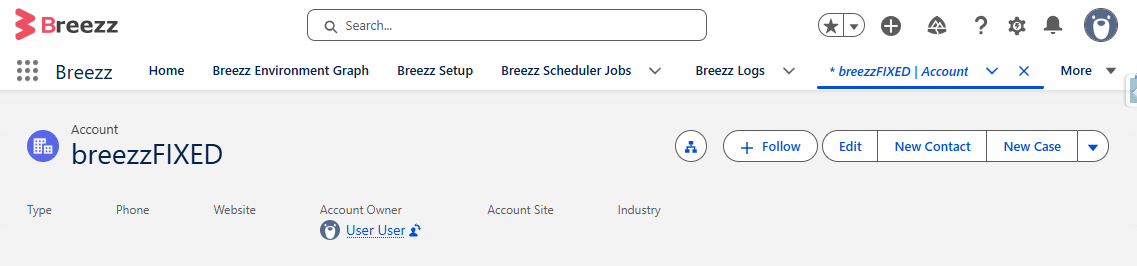
Create a new Account (e.g., Name:
Ms_Smith) and click Save. -
Verify that the Step logic executed and updated the record name:
-
To turn off this functionality instantly without code deployments, navigate back to Breezz Setup → Feature Flags and uncheck Is Enabled.