Run Flow
Breezz allows you to execute Autolaunched Flows directly as a Step within a Step Group execution pipeline. This enables admins and developers to process trigger records declaratively while maintaining framework execution ordering, bulkification, and error tracking.
Core Flow Variable Requirements
When executing a Flow inside a Breezz Step, the framework passes trigger context records into the Flow and expects updated records returned in a specific collection variable:
records: Record Collection variable (Input enabled) matching the target SObject type. Receives current context records (Trigger.new).oldRecords: Record Collection variable (Input enabled) matching the target SObject type. Receives prior state records (Trigger.old).results: Record Collection variable (Output enabled) matching the target SObject type. Holds all records modified or created by the Flow. Breezz automatically commits these records to the database.
Step 1: Define Flow Variables
Create an Autolaunched Flow in Salesforce Setup and define the three required record collection variables for your target SObject (e.g., Lead):
records: Data Type =Record, Allow multiple values (collection) =true, Available for input =true.oldRecords: Data Type =Record, Allow multiple values (collection) =true, Available for input =true.results: Data Type =Record, Allow multiple values (collection) =true, Available for output =true.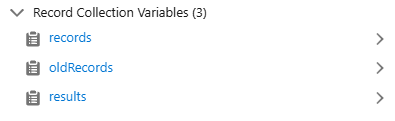
Step 2: Loop and Filter Trigger Records
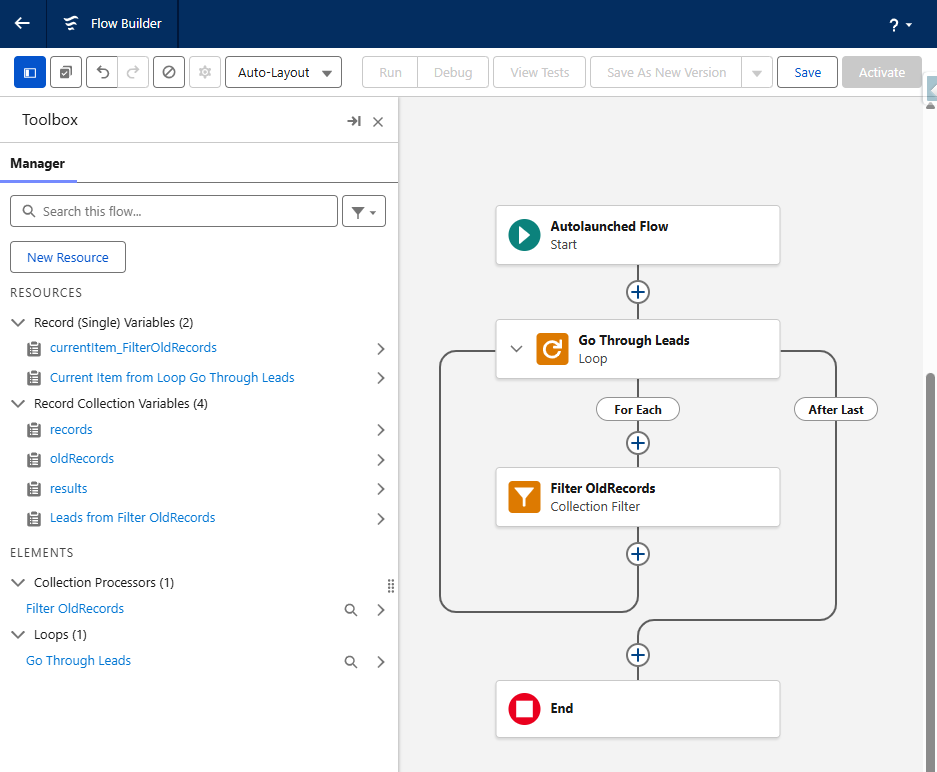
- Add a Loop element to iterate through the
recordscollection. - Add a Collection Filter element inside the loop to find the corresponding prior version from
oldRecordsby matching record IDs.
Step 3: Evaluate Decision Logic
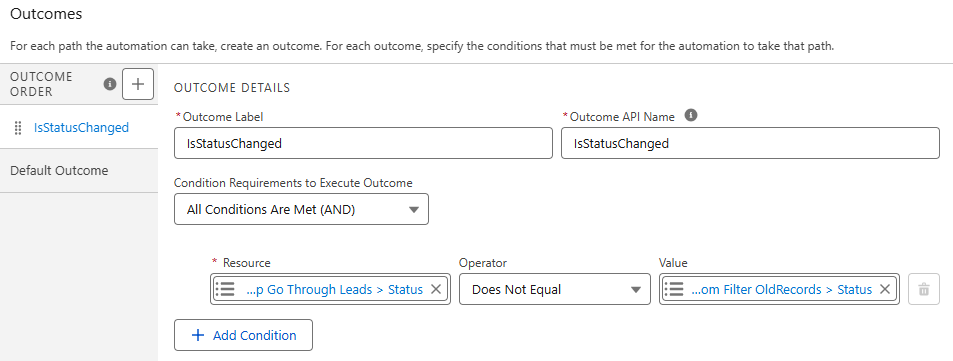
Add a Decision block to check whether target fields (e.g., Status) were modified during the current transaction pass.
Step 4: Populate the Results Collection
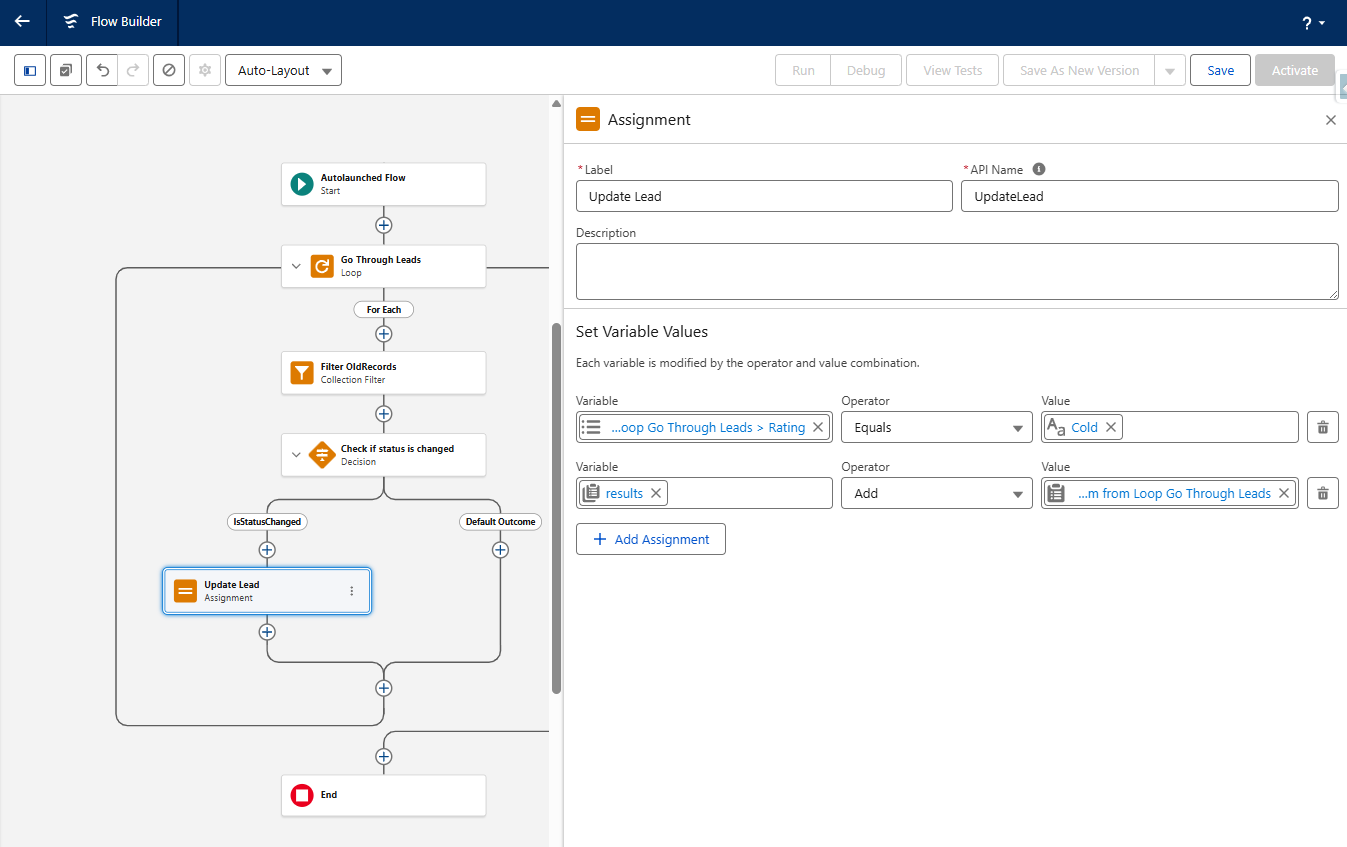
- Use an Assignment element to update field values on the current record instance (e.g., set
Ratingto Hot). - Add the modified record instance to the
resultsrecord collection variable.
Step 5: Configure the Step in Breezz Setup
- Ensure an After Update trigger is configured on the target object (
Lead).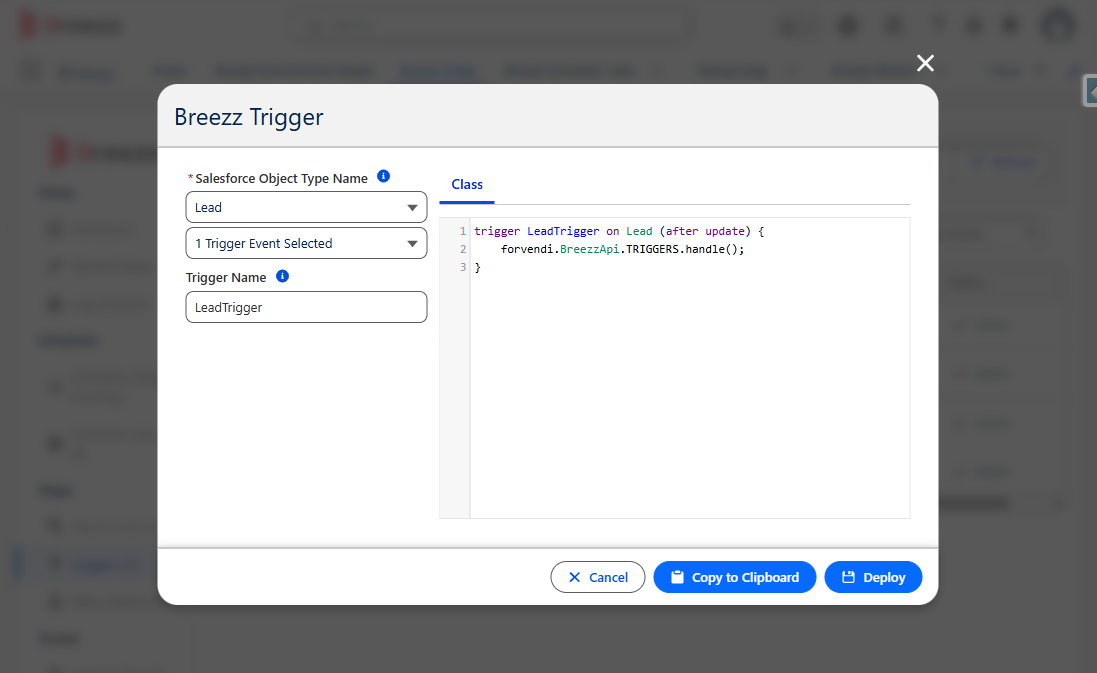
- Navigate to Breezz Setup → Step Groups → Select Target Group.
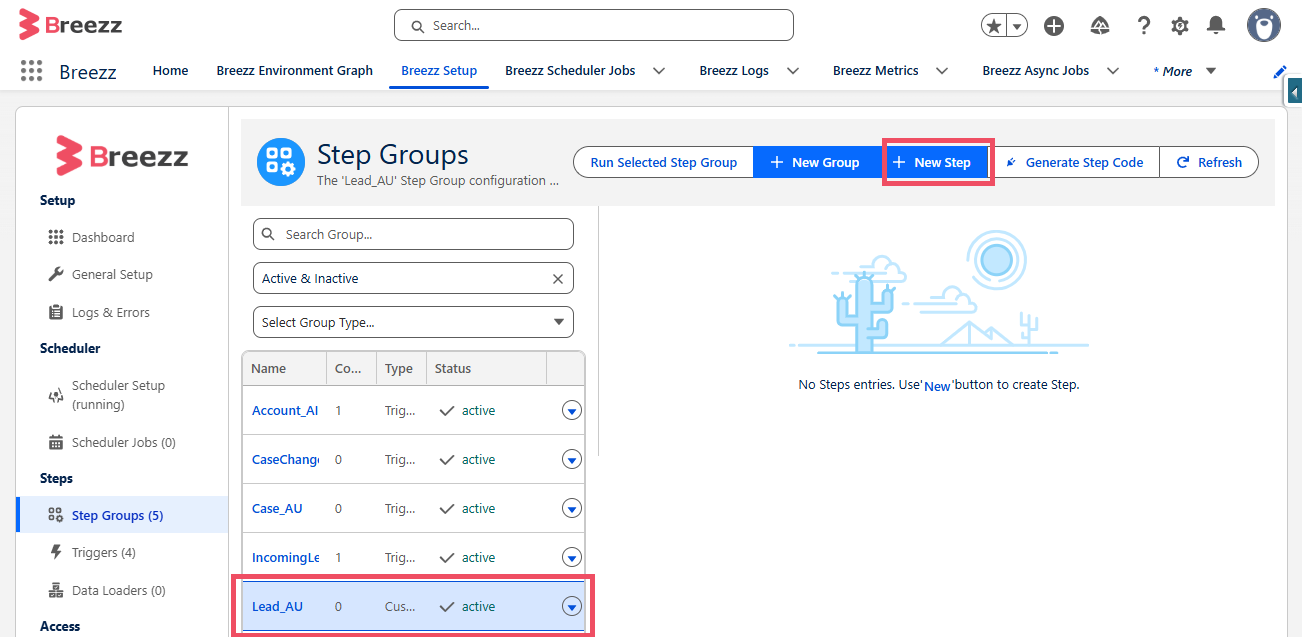
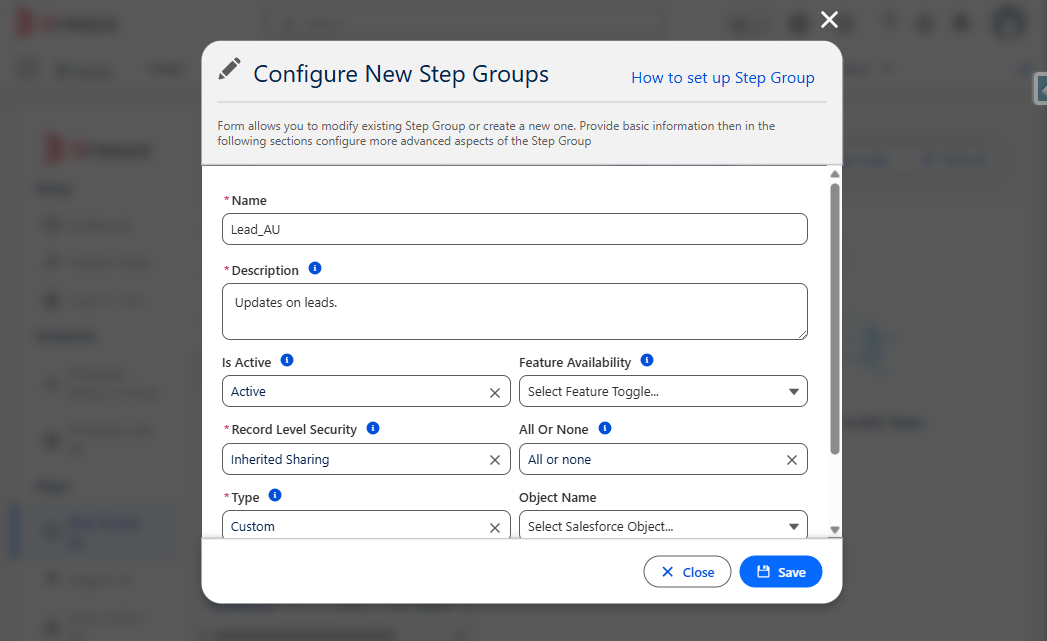
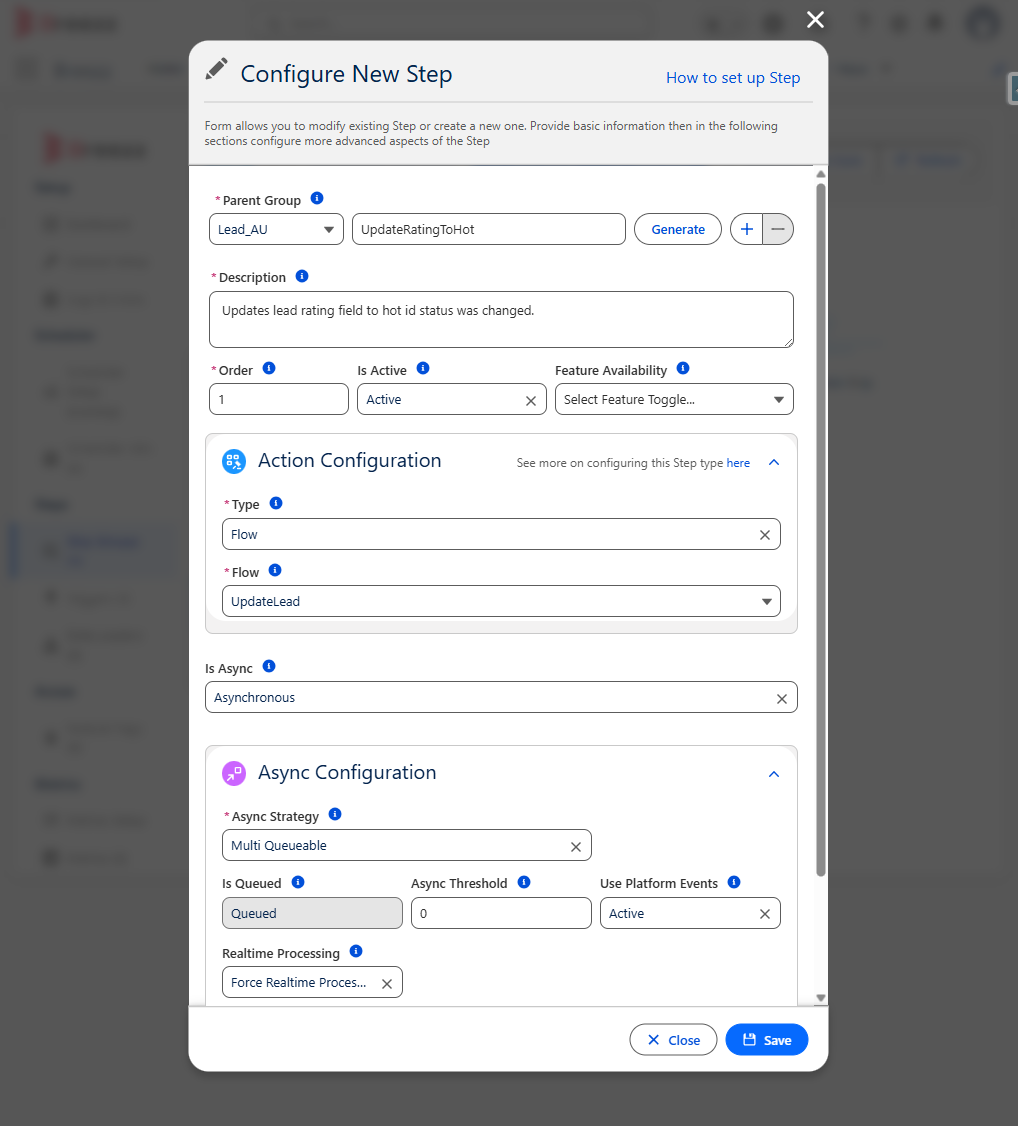
- Click New Step, set Step Type to Flow, and select your Autolaunched Flow name.
Verification
When a Lead status is updated (e.g., changed to “Working - Contacted”), the Trigger fires, executes the Flow Step, and automatically updates the Lead Rating field to Hot.
💡 Related Topics: To learn more about configuring Step Groups and trigger bindings, visit Trigger Configuration.