Environment Graph
The Environment Graph is a default Breezz application tab and the ideal starting point for your journey. This tile-based tool provides a comprehensive visual representation of your Breezz configurations. It also allows you to easily modify existing settings and introduce new ones from a single, centralized location.
Graph Context
Trigger Context
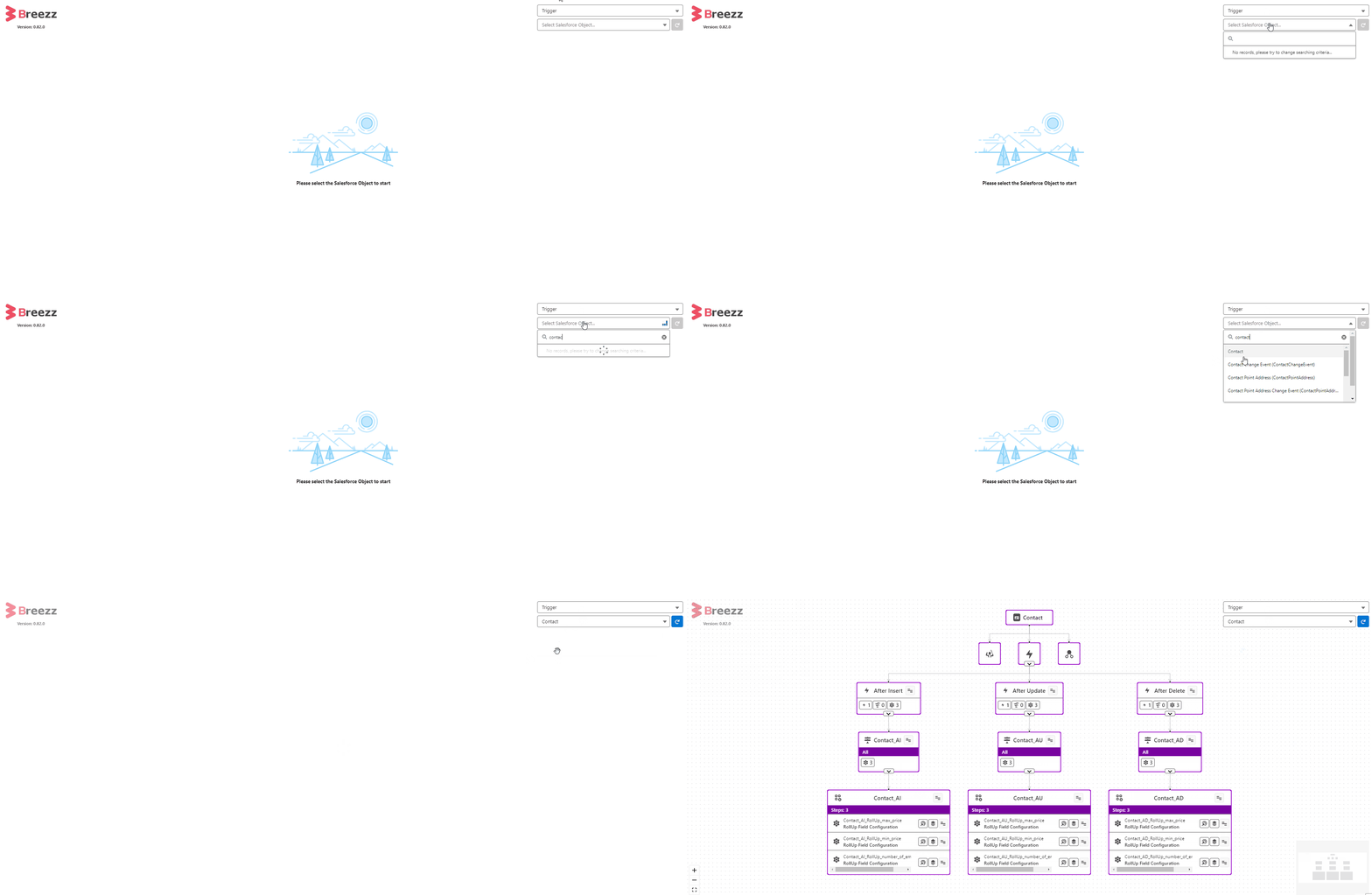
In this mode, the graph displays the entire Breezz configuration linked to a specific Salesforce object. It presents associated Breezz Scheduler Jobs and Breezz Trigger Handlers, along with their respective Groups and Steps.
To view an object’s configuration, select Trigger from the top-right dropdown menu, then choose your desired object from the second dropdown below it.
Custom Step Group Context
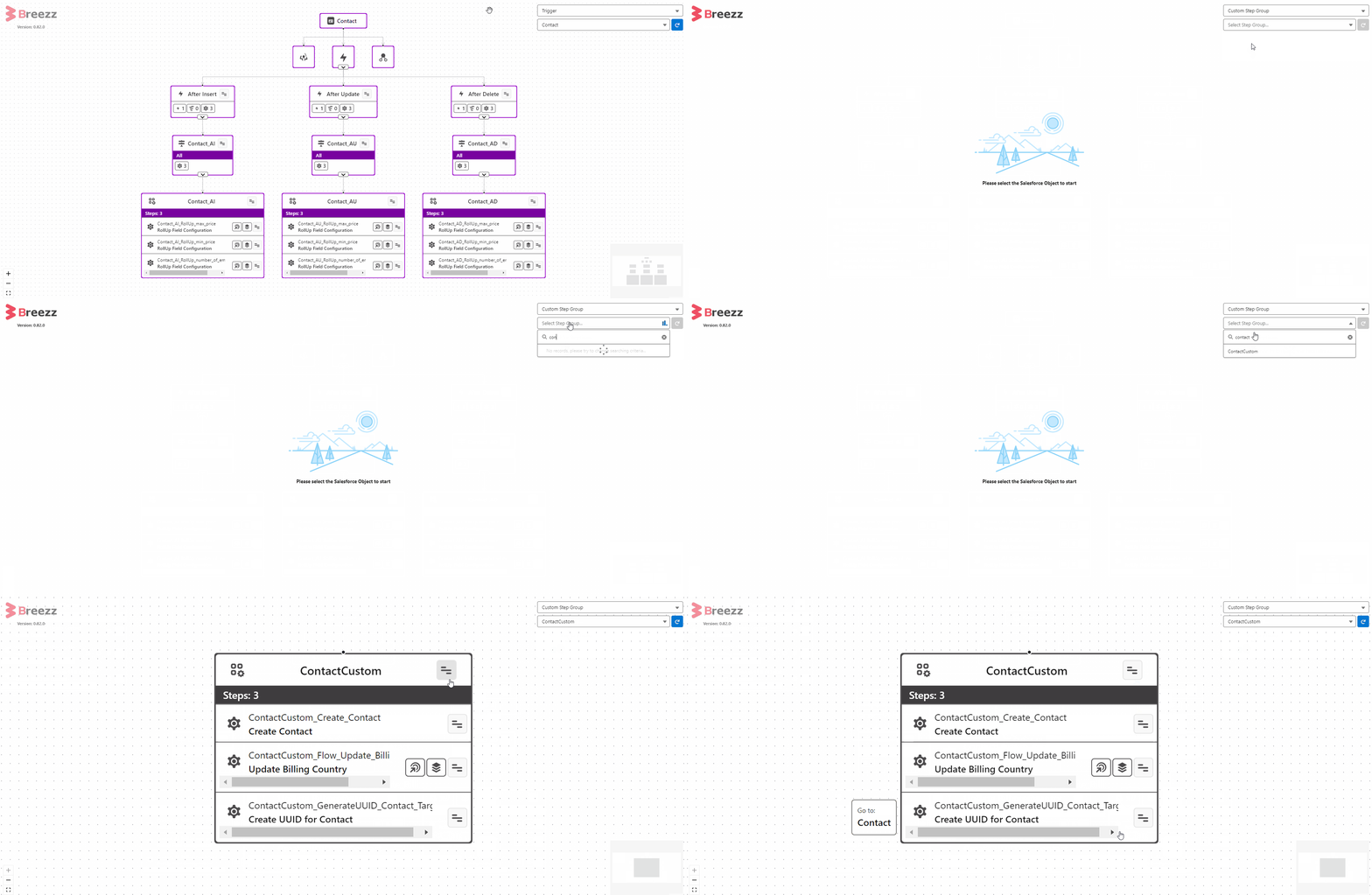
In this mode, the graph focuses exclusively on Step Groups to simplify the visualization of your associated logic.
To view a Step Group configuration, select Custom Step Group from the dropdown and search for the specific group you are interested in.
Graph Interface
Buttons
There are multiple global buttons available for controlling the graph view:
| Icon | Name | Purpose |
|---|---|---|
 |
Refresh | Updates the view, ensuring the displayed configuration is current. |
 |
Zoom In | Enlarges the view, enhancing the detail of displayed elements. |
 |
Zoom Out | Shrinks the view, providing a broader perspective of the graph. |
 |
Fit | Adjusts the graph to fit within the workspace, ensuring the entire graph is visible on the screen. |
Nodes
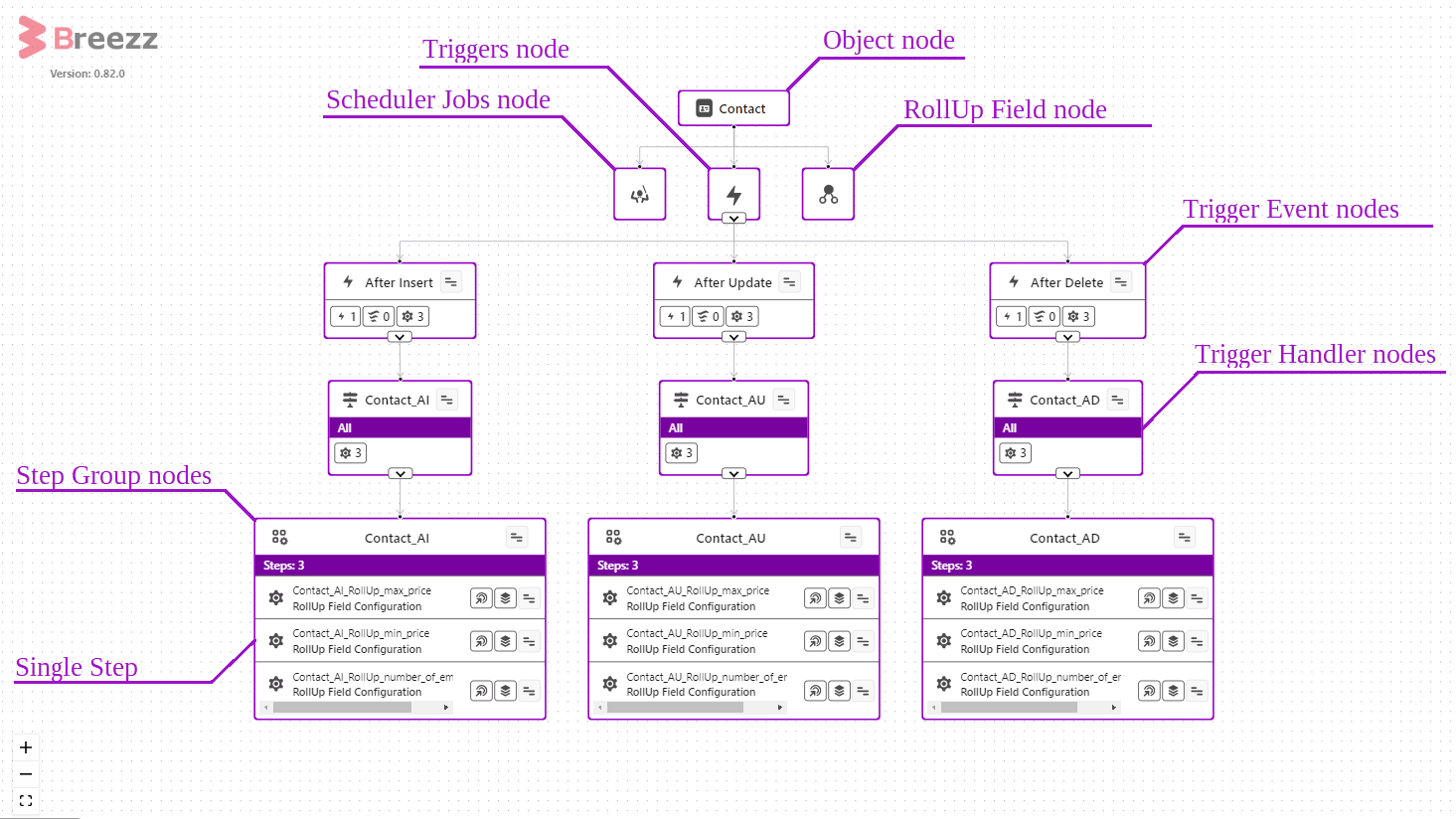
Nodes consist of several elements that provide fundamental configuration information. The available data depends on the specific node type. The following nodes can be found in the graph:
Nodes Icons
Nodes feature various icons to instantly convey additional information, such as types, statuses, and configuration details. Currently, the following icons are in use:
| Icon | Name | Purpose |
|---|---|---|
| Trigger | When standalone, it represents a single Trigger node. Along with a number, it indicates the quantity of related Apex Triggers. | |
| Scheduler | Scheduler Job icon. | |
| Group | Breezz Step Group icon. | |
| Flow | Along with the number indicates the quantity of associated Salesforce Flows. | |
| Inactive | Indicates deactivated Scheduler Jobs, Breezz Trigger Handles, Breezz Step Groups and Breezz Steps. | |
| Active | Indicates whether Breezz Scheduler Job is active. | |
| Running | Indicates whether Breezz Scheduler Job is running. | |
| Interval | Indicates Scheduler Job interval. | |
| Async | Indicates whether a Step is supposed to be executed asynchronously. | |
| Queued | Indicates whether the step is queued. | |
| Deployment in Progress | Indicates that Breezz configuration deployment is in progress. | |
| Deployment Error | Indicates that an error occured during Breezz configuration deployment. | |
| Warning | Warning icon. | |
| Error | Error Icon. | |
| Load | Indicates that Breezz config is still being loaded. |
Nodes Actions
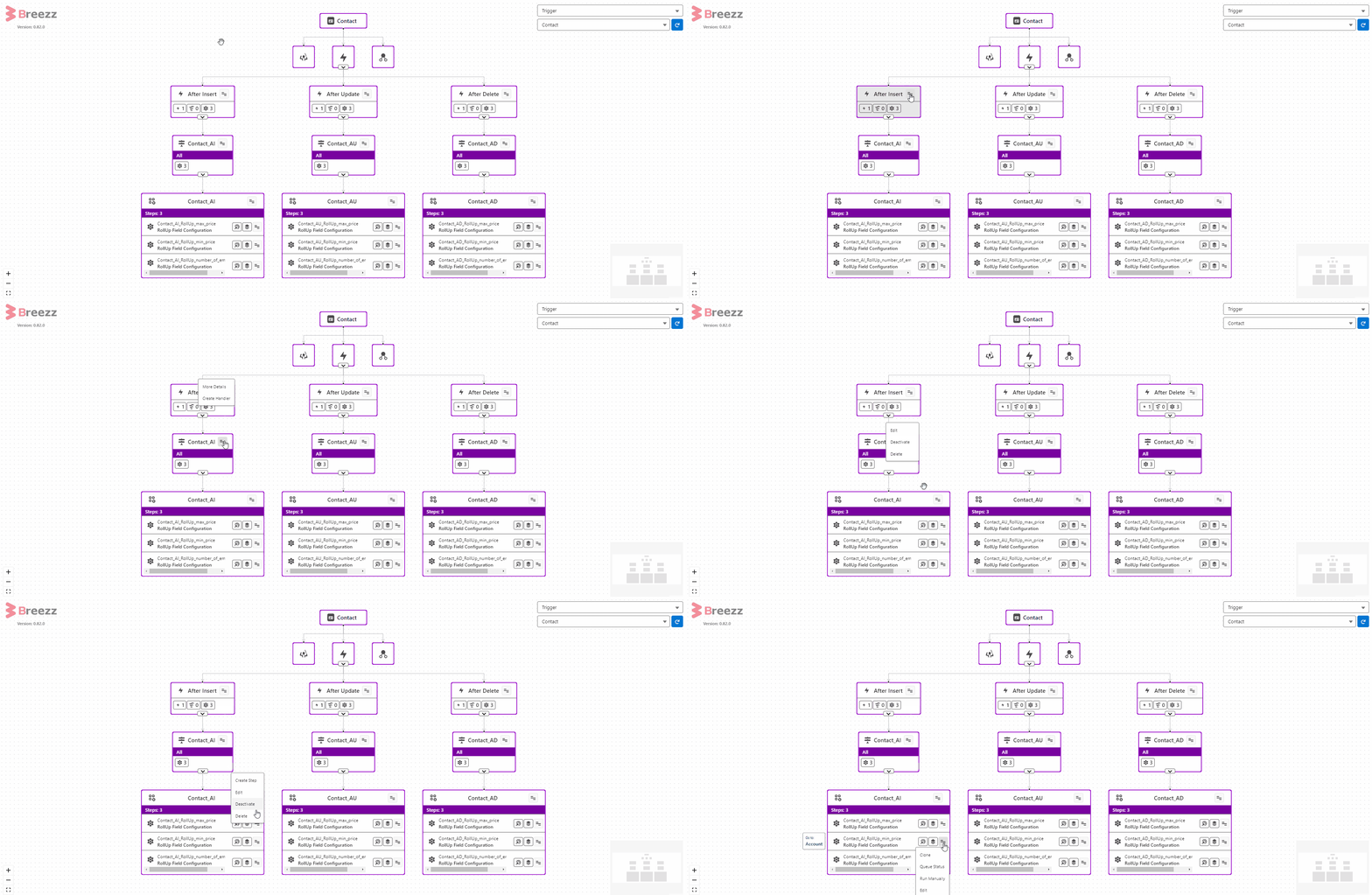
Each node offers a specific set of actions. To edit the node itself, simply double-click on it. Available actions depend on the node type:
Trigger Event:
- More details: Opens a detailed overview of the trigger event, including lists of related Apex Triggers, Salesforce Flows, and Breezz Steps.
- Create Handler: Opens the “Configure New Trigger Handler” modal.
Trigger Handler:
- Edit: Opens the Trigger Handler edit window.
- Activate/Deactivate: Toggles the active status of the entire Trigger Handler.
- Delete: Permanently removes the Trigger Handler from the system.
Step Group:
- Edit: Opens the Step Group edit window.
- Create Step: Opens the New Step window.
- Activate/Deactivate: Toggles the active status of the entire Step Group.
- Delete: Permanently removes the Step Group from the system.
Step:
- Edit: Opens the Step edit window.
- Activate/Deactivate: Toggles the active status of the specific Step.
- Queue Status: (Available for Queue-type Steps) Opens a window displaying error logs.
- Clone: Opens the New Step window, pre-populated with values from the source Step.
- Delete: Permanently removes the Step from the system.