Steps Group Scheduler Job
The Breezz Framework allows you to seamlessly schedule a Step Group to run asynchronously. Below is a comprehensive guide to scheduling a simple Step Group.
Step 1: Create the Step Group
First, let’s create a new Step Group to hold our logic.
- Navigate to Breezz Setup → Step Groups and click New Group.
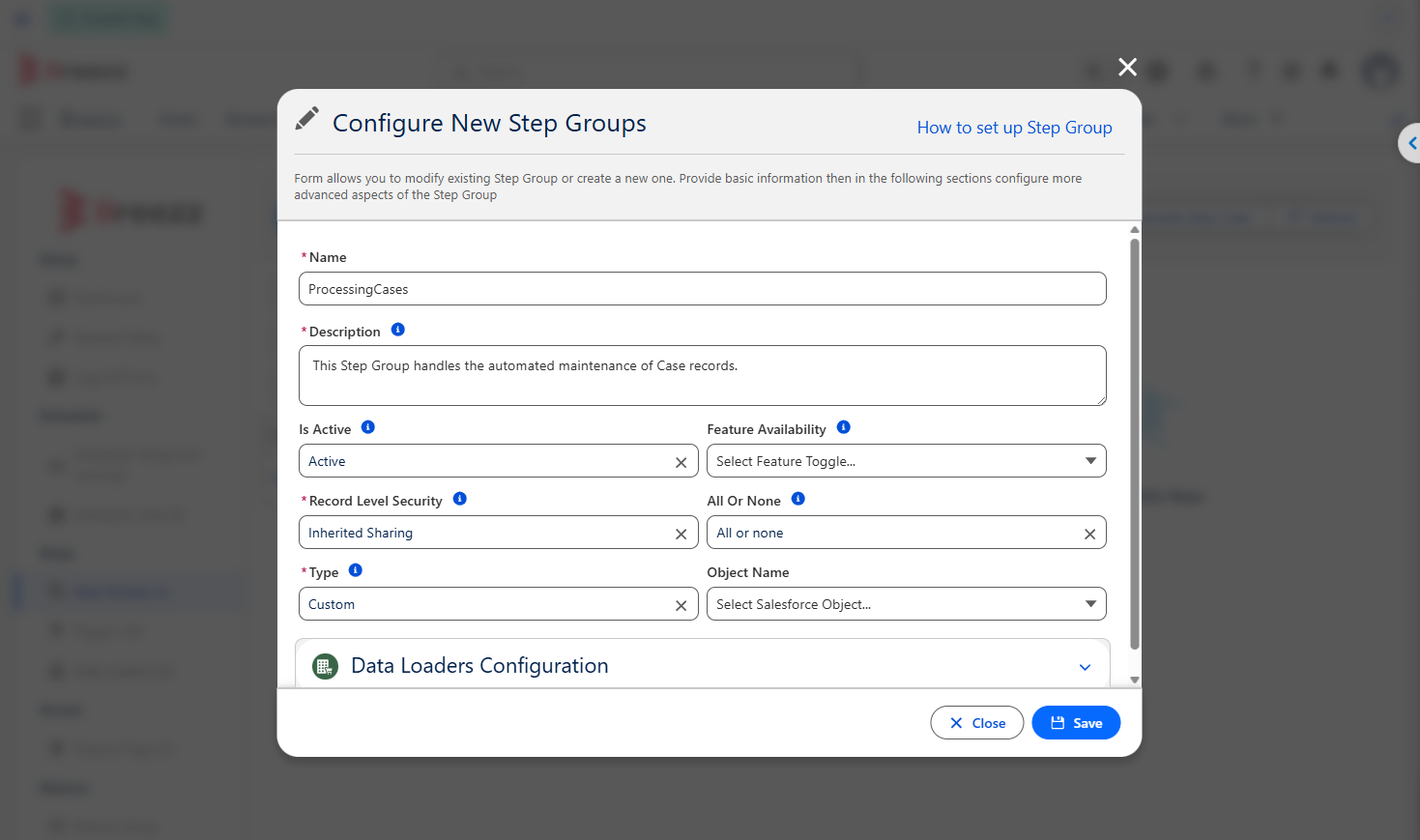
- Populate the configuration form with the following details:
- Name: Enter
ProcessingCases. - Description: Add a comprehensive description.
- Leave the rest of the fields at their default values and click Save.
Step 2: Create the Step Class
Next, create an Apex class and name it CloseInactiveCases.
ℹ️ Remember that you can use the Generate Step Code feature to scaffold this, or write it manually.
// The class must extend the forvendi.Step class
public with sharing class CloseInactiveCases extends forvendi.Step {

    // A public default constructor is required
    public CloseInactiveCases() {
        // For technical reasons, we must pass the class name.
        // Without this, the framework cannot execute this step in an async context or create correct logs.
        super(CloseInactiveCases.class.getName());
    }

    public override Boolean initRecordProcessing(Object record, Object optionalOldRecord) {
        // Cast the record parameter to Case since we plan to pass a list of Cases
        Case caseRecord = (Case) record;

        // Use the Modification Context to stage changes to the database
        getContext().addModificationToUpdate(
                caseRecord.Id,
                Case.Status,
                (caseRecord.Status.contains('Closed')) ? caseRecord.Status : 'Closed'
        );

        // Return false to indicate we have all we need to finish the process
        return false;
    }
}
Step 3: Create the Test Class
Ensure your custom logic is covered by a test class. Create a test method for your new Step Class.
@IsTest
private class CloseInactiveCasesTest {

    @TestSetup
    static void testSetup() {
        // Initialize Breezz setup.
        // Provide a forvendi.BreezzPlugins.BaseApexPlugin implementation to use public classes like CloseInactiveCases in Breezz.
        forvendi.BreezzApi.TESTS.init('BreezzPlugin');
    }

    @IsTest
    static void when_CaseIsInactive_expect_ChangeStatusToClosed() {

        Case caseRecord = new Case(Status = 'Working', Origin = 'Web');
        List<Case> cases = new List<Case>{caseRecord};

        Test.startTest();
        insert cases;
        forvendi.BreezzApi.STEPS.build()
                .addStep(new CloseInactiveCases())
                .execute(cases);
        Test.stopTest();

        forvendi.BreezzAPI.TESTS.assertErrorLogs();
        caseRecord = (Case) forvendi.BreezzAPI.TESTS.loadRecordById(caseRecord.Id);

        Assert.areEqual('Closed', caseRecord.Status);
    }
}
Step 4: Register the Step
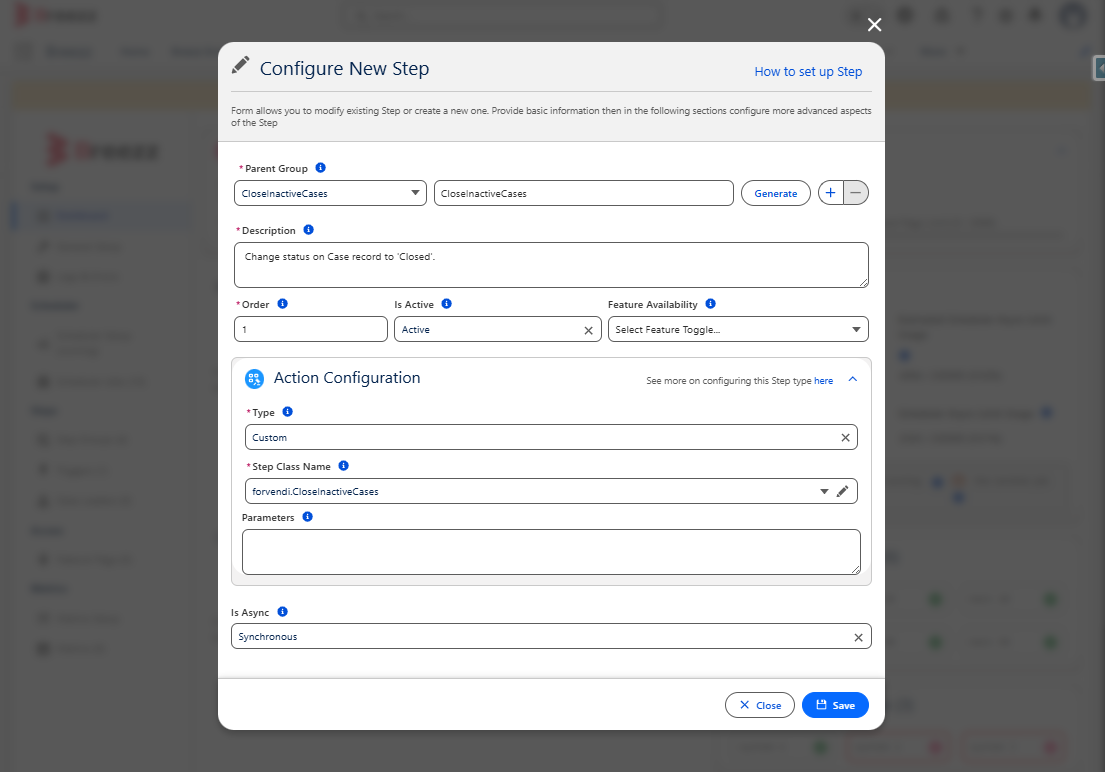
We need to register the newly created Step within the ProcessingCases group we created in Step 1.
Navigate to Breezz Setup → Step Groups → ProcessingCases → click New Step.
Step 5: Register the Scheduler Job
- To configure the Scheduler Job to execute your Step Group, navigate to Breezz Setup → Scheduler Jobs and click New.
In this example, the Scheduler will query for records and update the Status field on Cases where the last modified date is more than 7 days ago.
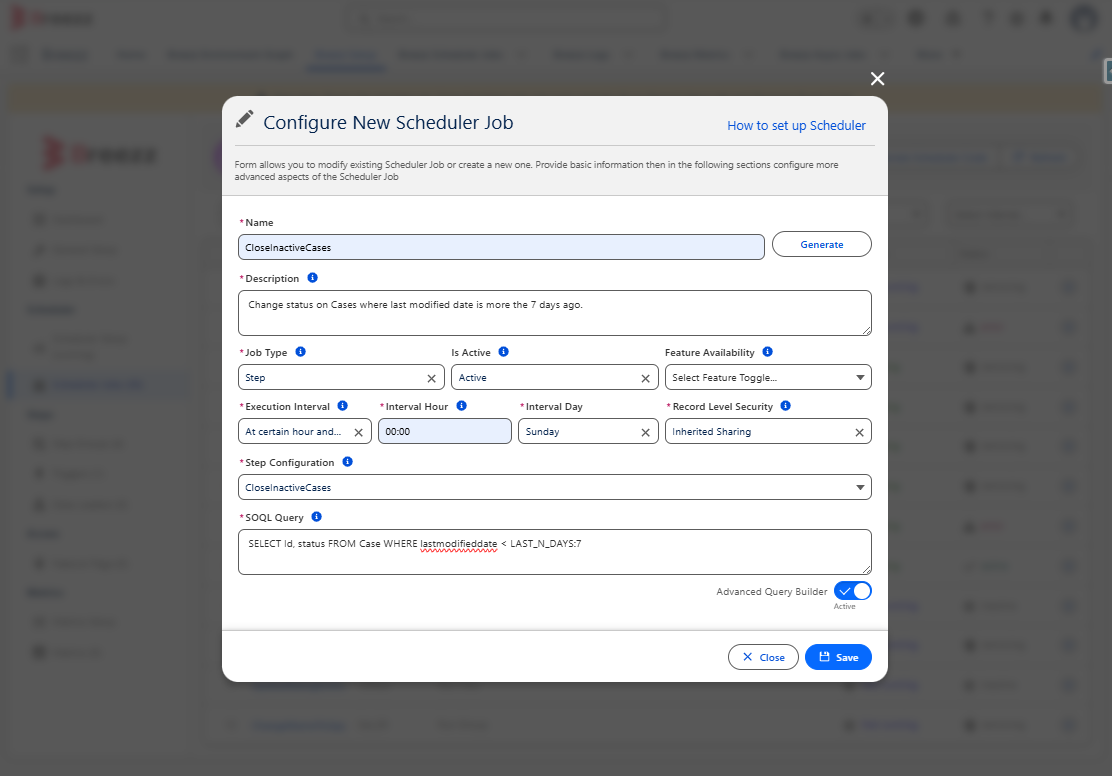
- Populate the configuration form with the following details:
- Name: Provide a clear identifier for the Scheduler Job.
- Description: Enter a comprehensive explanation of the job’s purpose.
- Job Type: Select Step Group.
- Execution Interval: Define when the scheduler should execute (e.g., Sunday midnight).
- Step Group: Input the exact name of the Step Group (
ProcessingCases). - SOQL Query: Provide a
SELECTstatement to define the exact records the job should process.
- After filling out all required fields, click Save.
Step 6: Test and Verify the Scheduler Job
Option 1: Run Manually via Apex
You can trigger the Scheduler manually via Apex. Open the Execute Anonymous Window in the Developer Console and run:
forvendi.BreezzApi.SCHEDULER.rerun();
// Or
forvendi.BreezzApi.SCHEDULER.run('CloseInactiveCases');
Option 2: Run Manually via UI
Alternatively, you can trigger it directly from the application UI by clicking Run Manually in the Scheduler Jobs Settings.
Verify the Job Record
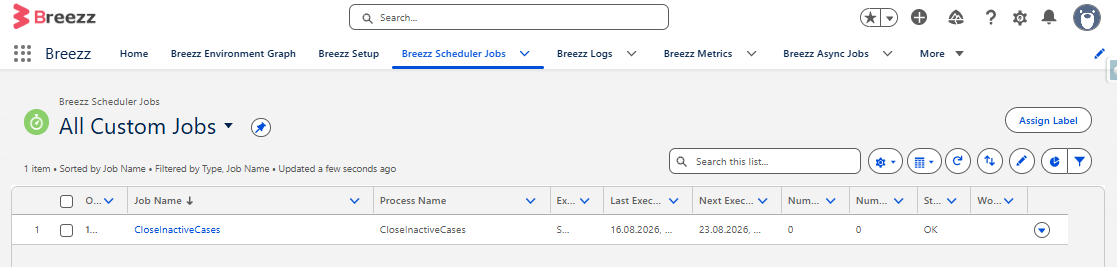
To confirm that the scheduler was created successfully, navigate to the App Launcher → Breezz → Breezz Scheduler Jobs → All Custom Jobs.
You should see your new Scheduler record listed here:
ℹ️ Note on Data Volumes: The standard Steps Group scheduler job is designed to run frequently on smaller datasets. If you need to process large data volumes (e.g., 10,000+ records), you should use the Steps Group - Batch job type instead, which is detailed on the next page.